


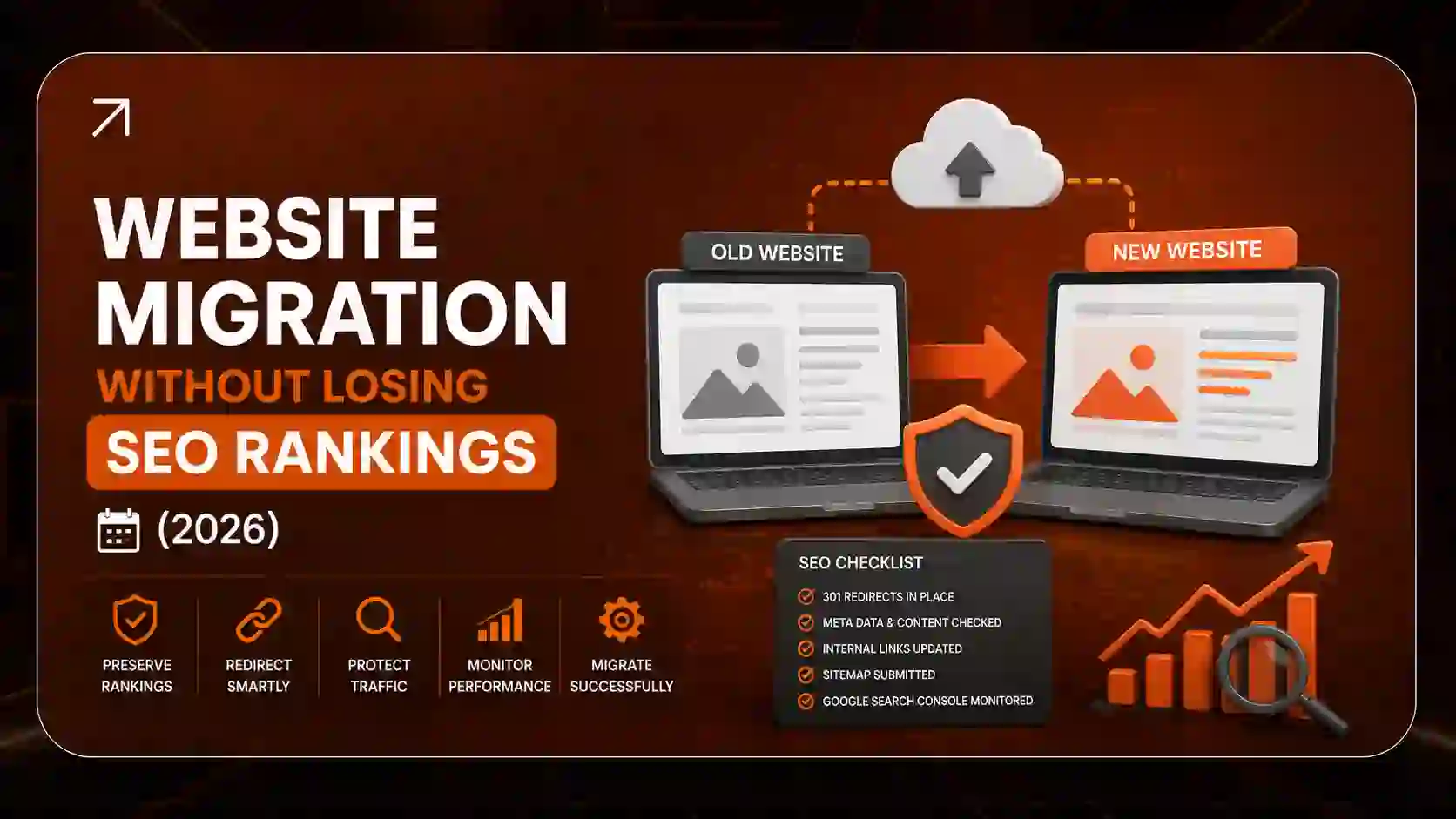
Website Migration Without Losing SEO Rankings: The Complete 2026 SEO Checklist
A website migration is one of the few projects that can erase years of SEO work in a single afternoon.
I’ve seen it happen more than once. A business launches a beautiful new site on a Monday. By Friday, organic traffic is down 40%. The design was fine. The problem was that nobody mapped the old URLs, the staging site’s noindex tag went live, and 300 high-value backlinks now pointed to 404 pages.
The good news is that almost every migration disaster can be prevented. This guide shows you how to migrate a website without losing SEO rankings, whether you’re changing domains, switching CMS platforms, moving to HTTPS, or redesigning from scratch.
You’ll get a phase-by-phase website migration SEO checklist, a 301 redirect mapping process, launch-day steps, recovery timelines, and the tools professionals actually use.
Key Takeaways
- Website migration SEO is about preserving the signals Google already trusts: URLs, content, links, and technical health.
- 1:1 301 redirects are the single most important factor in keeping rankings after a migration.
- A pre-migration audit and benchmark give you the baseline you need to spot problems fast.
- A short ranking fluctuation of 2 to 4 weeks is normal. A drop lasting longer than 6 to 8 weeks usually signals a technical error.
- Use the Google Search Console Change of Address tool only for domain changes, never for HTTP to HTTPS moves.
What Is Website Migration in SEO?
Website migration in SEO is any significant change to a website’s domain, URL structure, platform, hosting, design, or protocol that can affect how search engines crawl, index, and rank it. The goal of an SEO migration is to transfer existing rankings, link equity, and organic traffic to the new setup without loss.
In simple terms, Google has spent years learning where your pages live and what they’re about. A migration changes that map. If you don’t give Google clear directions, it has to figure things out on its own, and that’s when rankings slip.
Not every website change counts as a migration. Updating a blog post or swapping a logo won’t affect SEO. But changing URLs, moving to a new CMS, or merging two websites absolutely will.
Does Website Migration Affect SEO?
Yes. Every website migration affects SEO to some degree because Google must re-crawl, re-process, and re-evaluate your pages. A well-planned migration causes only a short, minor fluctuation. A poorly planned one can cause lasting traffic loss that takes months to recover.
Why Website Migrations Cause Ranking Drops
Most traffic losses come from a handful of predictable causes:
- Missing 301 redirects. Old URLs return 404 errors, and the link equity they held disappears.
- Staging settings pushed live. A leftover noindex tag or a “Disallow: /” line in robots.txt tells Google to ignore your new site.
- Content removed or thinned out. Designers often cut text to make pages “cleaner,” which strips away the content that earned the rankings.
- Broken internal linking. Menus, footers, and in-content links still point to old URLs, creating redirect chains.
- Lost metadata and structured data. Title tags, meta descriptions, canonical tags, and schema markup don’t always carry over during a CMS migration.
- Slower performance. A new theme or platform that hurts Core Web Vitals can drag down page experience signals.
Notice that none of these are Google’s fault. They’re process failures, and a good SEO migration plan catches every one of them.
Types of Website Migrations
Different migrations carry different levels of risk. Knowing which type you’re doing tells you which steps matter most.
| Migration Type | What Changes | SEO Risk | Use GSC Change of Address? |
|---|---|---|---|
| Domain name change | Entire domain | High | Yes |
| HTTP to HTTPS | Protocol only | Low to medium | No |
| CMS migration (replatforming) | Platform, often URLs and templates | High | No (unless domain changes) |
| Hosting migration | Server only | Low | No |
| Website redesign | Design, content, often URLs | Medium to high | No |
| URL structure migration | URL paths | High | No |
| Subdomain to subfolder | blog.site.com to site.com/blog | Medium | No |
| International / multilingual migration | ccTLDs, hreflang, language folders | High | Sometimes |
| E-commerce platform migration | Products, categories, filters | Very high | No (unless domain changes) |
| Merging websites / consolidation | Multiple domains into one | Very high | Yes, for each moved domain |
Rule of thumb: the more URLs that change, the higher the risk. A hosting move with identical URLs is simple. A domain change combined with a redesign and new CMS is the riskiest project in SEO. If you can, avoid stacking several migration types at once.
What Is the Difference Between Website Migration and Website Redesign?
A website redesign changes how a site looks and feels. A website migration changes where or how the site lives, such as its domain, platform, or URLs. Many redesigns become migrations when URLs, content, or templates change, which is why every redesign needs an SEO review. Our website redesign checklist covers the design side in more depth.
Phase 1: Pre-Migration Audit and Benchmarking
This is the phase most teams rush, and it’s the one that saves you. You can’t protect what you haven’t measured.
Step 1: Crawl Every URL on the Current Site
Run a full crawl of your existing site using Screaming Frog SEO Spider or Sitebulb. Export every URL that returns a 200 OK status, along with:
- Title tags and meta descriptions
- H1 and H2 headings
- Canonical tags
- Word count
- Internal links (inlinks and outlinks)
- Structured data and schema markup
- Status codes, including existing redirects and 404 errors
Don’t rely on the crawl alone. Pull URLs from your XML sitemap, Google Search Console, Google Analytics 4, and your backlink tool too. Crawlers miss orphan pages that aren’t linked internally but still get traffic and links.
If you want a deeper framework, follow our technical SEO audit checklist before any migration begins.
Step 2: Benchmark Organic Traffic and Keyword Rankings
Record at least 3 months of baseline data, ideally 12 months so you can account for seasonality:
- Google Search Console: clicks, impressions, average position, and indexed pages
- Google Analytics 4: organic sessions, conversions, and revenue by landing page
- Ahrefs or Semrush: keyword rankings, referring domains, and top linked pages
- PageSpeed Insights or Lighthouse: Core Web Vitals scores for key templates
Save these as dated snapshots. After launch, you’ll compare against them line by line.
Step 3: Identify Your Top-Performing Pages
Sort your URL list by three factors:
- Organic traffic
- Conversions or revenue
- Referring domains (backlinks)
The top 10% to 20% of pages usually drive the majority of your SEO value. These pages get extra care: exact content preservation, manual redirect checks, and daily monitoring after launch.
Step 4: Pick the Best Time to Migrate
The best time to migrate a website for SEO is during your slowest traffic period. For most B2B sites, that’s late December or mid-summer. For e-commerce stores, never migrate right before Black Friday or a major sales season.
Also avoid launching mid-week before a holiday, when your team won’t be around to fix problems. And if a Google Core Update is rolling out, consider waiting until it settles so you can tell migration effects apart from algorithm effects.
Phase 2: How to Create a 301 Redirect Map
A 301 redirect map is a spreadsheet that pairs every old URL with its most relevant new URL. It tells developers exactly which permanent redirects to set up, so users and search engines land on the right page and link equity transfers to the new location.
This is the heart of website migration SEO. Get it right, and most of your rankings survive.
What Is a 301 Redirect and Why Is It Important in Migration?
A 301 redirect is a permanent redirect. It tells browsers and search engines that a page has moved for good. Google treats a 301 as a strong signal that the new URL should replace the old one in its index, and ranking signals like backlinks consolidate onto the new page. You can read Google’s own guidance in its documentation on redirects and Google Search.
How to Build a 1:1 Redirect Map
Set up a spreadsheet with these columns:
| Old URL | New URL | Redirect Type | Priority | Traffic | Backlinks | Status After Launch |
|---|---|---|---|---|---|---|
| /services/seo-audit.html | /services/seo-audit/ | 301 | High | 1,240/mo | 38 | |
| /blog/2019/migration-tips | /blog/website-migration-tips/ | 301 | Medium | 310/mo | 6 |
Follow these rules:
- Map one-to-one wherever possible. Each old page goes to its closest equivalent on the new site.
- Match intent, not just topic. A product page should redirect to the same product, not the category.
- Consolidate thin pages carefully. If you merge three weak articles into one strong guide, redirect all three to the new guide.
- Only let truly dead content return 404 or 410. If a page has no traffic, no links, and no equivalent, a 404 or 410 is acceptable.
Should I Redirect All Old Pages to the Homepage?
No. Redirecting all old pages to the homepage is one of the most damaging migration mistakes. Google often treats irrelevant homepage redirects as soft 404 errors, which means the link equity is lost. Always redirect each old URL to the most relevant new page.
Using Regex Redirects for CMS Migrations
For large sites, writing thousands of individual rules isn’t practical. Pattern-based redirects using regular expressions (regex) can handle entire URL groups at once.
For example, if your blog moves from /blog/2021/05/post-name/ to /blog/post-name/, one regex rule can strip the dates from every post URL. Just test regex carefully, because one bad pattern can redirect thousands of pages to the wrong place.
Redirecting Dynamic Query Parameters
E-commerce sites and custom CMS platforms often use URL parameters like ?id=123 or ?category=shoes. Many redirect tools ignore parameters by default, so these URLs can slip through. Map parameterized URLs that have traffic or backlinks, and decide how your new platform will handle filters, sorting, and tracking parameters.
How to Avoid Redirect Chains and Loops
To prevent redirect chains, always point each old URL directly to its final destination URL in a single hop. Avoid sequences like URL A to URL B to URL C, because chains slow down crawling, waste crawl budget, and can weaken link equity.
This matters most on sites that have been migrated before. If you moved from HTTP to HTTPS in 2019 and now you’re changing domains, update the old redirects so they skip the middle step. Redirect loops, where URL A points to B and B points back to A, will break the page entirely.
301 vs 302 Redirects: Which Should You Use?
| Redirect | Meaning | When to Use It in a Migration |
|---|---|---|
| 301 | Moved permanently | Almost always. Domain changes, URL changes, HTTPS moves |
| 308 | Permanent (keeps request method) | Same as 301, useful for forms and APIs |
| 302 | Found / temporary | Short-term changes you plan to reverse |
| 307 | Temporary (keeps request method) | Temporary moves where method matters |
| Meta refresh / JavaScript | Client-side redirect | Avoid unless no server option exists |
Google has said it can process both permanent and temporary redirects, but a 301 sends the clearest signal about which URL should be indexed. For a migration, use 301s.
Server-Level vs Edge Redirects: Which Is Faster?
Where your redirects run affects speed. Redirects handled in application code (like a WordPress plugin) require the server to load your CMS before redirecting. Redirects handled at the server level (Nginx or Apache) or at the CDN edge (Cloudflare Workers, Cloudflare redirect rules, or Vercel Edge Middleware) respond much faster.
For large migrations, edge or server-level redirects reduce Time to First Byte (TTFB), help Googlebot process redirects quickly, and keep users from waiting. Cloudflare’s redirect documentation is a solid starting point if you already use their CDN.
Phase 3: How to Set Up a Staging Site Correctly
A staging environment is a private copy of your new site where you build and test before launch. Handle it carefully, because a staging site can hurt you in two ways: by getting indexed early, or by carrying its blocking rules onto the live site.
Should I Block My Staging Site From Google?
Yes. Always block your staging site from search engines. The most reliable method is HTTP basic authentication (password protection), because Googlebot can’t crawl pages it can’t access. Noindex tags and robots.txt rules help, but they must be removed before launch.
Here’s how the options compare:
- HTTP basic auth or IP allowlisting: The strongest option. Nothing gets crawled.
- Noindex meta tag: Keeps pages out of the index, but it’s the setting teams most often forget to remove.
- Robots.txt disallow: Blocks crawling, but pages can still get indexed if others link to them.
If your staging site has already been indexed, add password protection, then use the Removals tool in Google Search Console to temporarily hide the URLs.
How to Test a Website Before Migration Launch
Crawl the staging site with Screaming Frog (using its authentication settings) and check:
- Every important page from your old site has an equivalent
- Title tags, meta descriptions, and H1s match or improve on the old ones
- Canonical tags point to the new production URLs, not staging URLs
- Structured data validates in Google’s Rich Results Test
- Hreflang tags are correct for international sites
- Internal links use final new URLs, not old URLs that will redirect
- Mobile layout works properly (Google uses mobile-first indexing)
- Core Web Vitals are equal to or better than the old site
Load speed deserves special attention. If your new build is slower, fix it before launch using our Core Web Vitals guide and our developer guide to speeding up a slow website.
Phase 4: Launch Day Execution
Launch day should feel boring. If your preparation was solid, you’re just flipping switches and verifying.
Your Launch-Day Checklist
- Lower DNS TTL settings 24 to 48 hours before launch. A shorter TTL means DNS changes spread faster.
- Confirm the SSL certificate is installed and valid on the new domain or server.
- Push the site live and immediately remove password protection, noindex tags, and robots.txt blocks.
- Activate all 301 redirects and spot-check your top 50 URLs manually.
- Check robots.txt on the live site to make sure nothing important is disallowed.
- Verify the new property in Google Search Console (and keep the old property verified).
- Submit the new XML sitemap in Search Console.
- Use the Change of Address tool if you changed domains.
- Confirm Google Analytics 4 and Google Tag Manager are firing on every template.
- Update internal links, canonical tags, and hreflang to the new URLs if anything was missed.
How Do I Tell Google My Website Has Moved?
You tell Google your site has moved by combining three signals: 301 redirects from every old URL, an updated XML sitemap for the new site, and, for domain changes, the Change of Address tool in Google Search Console. Google explains the full process in its guide to site moves with URL changes.
When Should You Use the Google Search Console Change of Address Tool?
Use the Change of Address tool only when moving an entire site from one domain or subdomain to another, such as example.com to newexample.com. Don’t use it for HTTP to HTTPS migrations, hosting changes, or URL path changes on the same domain. Google’s help page on the Change of Address tool lists the requirements.
Do I Need to Submit My New Sitemap After Migration?
Yes. Submit the new XML sitemap containing only final, indexable 200 OK URLs. Some SEOs also keep a temporary sitemap of old URLs live for a few weeks so Google discovers the redirects faster. Remove it once the old URLs drop out of the index.
Does DNS Propagation Hurt SEO?
DNS propagation usually finishes within a few hours to 48 hours, and it rarely hurts rankings on its own. The risk comes from downtime or errors during the switch. Lowering TTL in advance and keeping the old server running until propagation completes lets you migrate a website without downtime.
Phase 5: Post-Migration Audit and Monitoring
The first 30 days after launch decide whether your migration succeeds. Monitor daily in week one, then weekly.
The Dual-Crawl Comparison Protocol
This is the most reliable way to verify a migration:
- Take the full list of old 200 OK URLs from your pre-migration crawl.
- Upload that list to Screaming Frog in list mode after launch.
- Enable “Always Follow Redirects” so the crawler tracks each hop.
- Confirm that every old URL returns a single 301 leading to a 200 OK page.
- Flag anything that returns a 404, a 302, a redirect chain, or a redirect to the homepage.
Then crawl the new site fresh to catch broken internal links, missing metadata, orphan pages, and accidental noindex tags.
Post-Migration 404 and Backlink Monitoring Framework
| Timeframe | What to Check | Tools |
|---|---|---|
| Launch day | Top 50 URLs, redirects, robots.txt, noindex, analytics | Screaming Frog, browser |
| Days 1 to 7 | Server logs for 404s, high-value backlinks hitting errors | Server logs, Ahrefs, GSC |
| Week 2 | Indexing report, crawl errors, sitemap coverage | Google Search Console |
| Weeks 2 to 4 | Keyword rankings vs baseline, organic traffic by page | Semrush, Ahrefs, GA4 |
| Months 2 to 3 | Old URLs dropping from index, link equity consolidation | GSC, backlink tools |
Server logs are especially valuable in week one. They show you exactly which URLs Googlebot and real visitors are requesting, including old URLs you forgot to map.
How Do I Check If My Migration Was Successful?
A migration is successful when:
- Old URLs redirect to relevant new URLs in a single 301 hop
- The new URLs appear in Google’s index and the old ones drop out
- Organic traffic and conversions return to baseline within 4 to 8 weeks
- Keyword rankings stabilize at or near pre-migration positions
- Crawl errors and 404s in Search Console stay low
How Do I Monitor Rankings After Migration?
Track your benchmark keyword set daily in Ahrefs, Semrush, or a rank tracker. Compare performance at the page level in Google Search Console, not just at the site level. A site-wide number can hide the fact that one high-value section collapsed while the rest held steady.
Platform-Specific Migration Guides
How to Migrate From HTTP to HTTPS Without Losing Rankings
HTTP to HTTPS is the lowest-risk migration when done correctly:
- Install a valid SSL certificate
- Set 301 redirects from every HTTP URL to its HTTPS version
- Update internal links, canonical tags, sitemaps, and hreflang to HTTPS
- Fix mixed content (images or scripts still loading over HTTP)
- Add the HTTPS property in Search Console
Don’t use the Change of Address tool here. If you see a ranking drop after an HTTPS move, check for redirect chains, mixed content, or canonical tags still pointing to HTTP.
How to Keep SEO Rankings When Changing Domain Names
Changing domains is high risk because your entire site moves at once. To preserve backlinks:
- Map every old URL 1:1 to the new domain
- Keep the old domain registered and the redirects active for at least one year, ideally permanently
- Use the Change of Address tool
- Reach out to your top referring sites and ask them to update links to the new domain
That last step is often skipped, but updated direct links are stronger than redirected ones. A focused SEO outreach service can handle this at scale.
How to Migrate From WordPress to Shopify Without Losing SEO
WordPress to Shopify is a common e-commerce move, and URL structure is the main challenge. Shopify forces fixed paths like /products/ and /collections/, so nearly every product and category URL will change.
Build a complete redirect map, use Shopify’s built-in URL redirect tool (or an app for bulk imports), migrate product descriptions and meta data exactly, and rebuild your blog content carefully. If you’re weighing the build itself, see our Shopify website development cost guide.
WordPress to Next.js or Headless CMS Migration
Moving from a monolithic CMS like WordPress to a headless stack (Next.js with Sanity, Contentful, or a headless WordPress backend) can dramatically improve speed. But it introduces new SEO risks:
- Pages must be server-side rendered or statically generated so Googlebot sees full content
- Metadata, canonical tags, and schema must be rebuilt in code
- XML sitemaps and robots.txt won’t generate automatically the way Yoast SEO or Rank Math did
- Redirects should run at the edge, such as Vercel Edge Middleware
Our comparison of headless vs traditional CMS and our breakdown of Webflow vs WordPress vs custom builds can help you choose the right platform before you commit.
How to Move a Website to a New Host Without Losing SEO
If your URLs, content, and domain stay the same, a hosting migration is low risk. Copy the site, test it on the new server, lower DNS TTL, switch DNS, and keep the old host active for a few days. Google’s guide to site moves without URL changes covers this scenario. Just watch server response times, since a slower host can affect crawling.
Website Migration Checklist for E-Commerce Stores
E-commerce migrations carry the most risk because every product page is revenue. Add these to your checklist:
- Map every product, category, and variant URL
- Preserve product descriptions, reviews, and structured data (Product schema)
- Plan faceted navigation and filter URLs to avoid duplicate content
- Keep out-of-stock and discontinued product pages logical (redirect to a close alternative, not the homepage)
- Test checkout, payment, and tracking before launch
For category optimization after launch, our guide on how to rank product and category pages is a useful next read.
Subdomain to Subfolder and International Migrations
Moving blog.example.com to example.com/blog often consolidates authority onto the main domain. Treat it like any URL migration with full 1:1 redirects.
For multilingual sites, hreflang tags must be updated on every language version at once. A single broken hreflang cluster can cause the wrong country version to rank.
The Complete Website Migration SEO Checklist
Use this as your master SEO migration plan.
Before migration
- Define the migration scope and type
- Crawl the full current site and export all URLs
- Benchmark traffic, rankings, conversions, and Core Web Vitals
- Identify top pages by traffic, revenue, and backlinks
- Build the 1:1 301 redirect map
- Set up a password-protected staging environment
- Migrate content, metadata, and structured data
- Crawl and test the staging site
- Choose a low-traffic launch window
During migration
- Lower DNS TTL in advance
- Launch and remove all staging blocks
- Activate redirects and spot-check top URLs
- Verify Search Console, submit the sitemap, and use Change of Address if needed
- Confirm analytics and tag tracking
After migration
- Run the dual-crawl comparison
- Monitor server logs and 404 errors daily for week one
- Fix redirect chains and broken internal links
- Track rankings and traffic against the benchmark
- Ask top referring domains to update backlinks
- Keep redirects in place for at least one year
Common Website Migration Mistakes to Avoid
These are the website migration SEO mistakes I see most often:
- Launching with noindex tags still active. One setting can deindex an entire site.
- Redirecting everything to the homepage. It creates soft 404s and wastes link equity.
- Skipping the benchmark. Without baseline data, you can’t diagnose what went wrong.
- Changing too many things at once. Domain, CMS, design, and content changes together make problems hard to isolate.
- Deleting old redirects too soon. Removing them after a few months throws away the link equity they carry.
- Forgetting images, PDFs, and media files. These have URLs, rankings, and backlinks too.
- Ignoring page speed. A slower site can undo the benefits of a clean migration.
How Long Does It Take to Recover Rankings After Website Migration?
Most well-executed migrations see temporary ranking fluctuations for 2 to 4 weeks while Google re-crawls and processes redirects. Small and mid-sized sites typically recover within 30 to 60 days. Large sites or domain changes can take 2 to 3 months or more for full signal consolidation.
| Stage | Typical Timeframe | What’s Happening |
|---|---|---|
| Discovery | Hours to days | Googlebot finds and follows redirects |
| Fluctuation | 1 to 4 weeks | Rankings shift as URLs swap in the index |
| Stabilization | 4 to 8 weeks | Most rankings return to baseline |
| Full consolidation | 2 to 6 months | Link equity and signals fully transfer on large sites |
These ranges vary with site size, crawl frequency, and migration type. If traffic is still down significantly after 6 to 8 weeks, something is broken. For broader context on SEO timelines, see how long SEO takes to show results.
How to Fix a Traffic Drop After Migration
If traffic falls and doesn’t bounce back, work through this order:
- Check indexation. Search
site:yourdomain.comand review the Pages report in Search Console for noindex or blocked pages. - Re-run the redirect crawl. Look for 404s, chains, loops, and homepage redirects.
- Compare page-level traffic. Find exactly which pages or sections lost traffic.
- Compare content. Use the Wayback Machine to see what old pages looked like and restore missing content.
- Check canonical tags. Make sure they don’t point to old or staging URLs.
- Review page speed. Test key templates in Google PageSpeed Insights.
- Rule out algorithm updates. Check whether a Google Core Update rolled out during your launch window.
Can a website migration recover lost rankings? Yes, in most cases. Once the root cause is fixed, rankings usually return within weeks, although recovery from a badly broken migration can take longer.
Website Migration Tools
| Tool | Best For |
|---|---|
| Google Search Console | Indexing, sitemaps, Change of Address, crawl errors |
| Google Analytics 4 | Traffic and conversion benchmarks |
| Screaming Frog | Full crawls, redirect testing, list-mode audits |
| Sitebulb | Visual audits and crawl comparisons |
| Ahrefs / Semrush | Backlink profile, keyword rankings, top linked pages |
| Google PageSpeed Insights / Lighthouse | Core Web Vitals and speed testing |
| Cloudflare | DNS, SSL, edge redirects |
| Yoast SEO / Rank Math | WordPress metadata, sitemaps, redirects |
| Google Tag Manager | Tracking continuity after launch |
| Wayback Machine | Recovering old content and URLs |
How Much Does Website Migration Cost?
Website migration cost depends on site size, platform complexity, and how much SEO support you need. As a rough guide:
- Small business sites (under 100 pages): Often a few hundred to a few thousand dollars for professional SEO migration support
- Mid-sized sites and CMS migrations: Commonly several thousand dollars, depending on redirect complexity and content volume
- Enterprise and e-commerce migrations: Can reach tens of thousands, especially with custom development and thousands of URLs
Pricing varies widely by provider, so always ask what’s included: audit, redirect mapping, staging QA, launch support, and post-migration monitoring. Our SEO services cost guide and web development cost guide break down US pricing further.
A cheap migration that loses 30% of your organic traffic is far more expensive than a properly managed one.
Real-World Example: What a Clean Migration Looks Like
Here’s an illustrative scenario based on common patterns in B2B migrations.
A professional services firm moves from an old WordPress theme to a new custom build and a shorter domain. The site has about 400 URLs, and 60 of them drive most of the leads.
What they did right:
- Crawled and benchmarked 12 months of data
- Built a full 1:1 redirect map with the 60 priority pages checked by hand
- Kept every service page’s content and headings intact
- Launched in a quiet week with redirects running at the server level
- Ran the dual-crawl protocol on day one and fixed 14 missed URLs within hours
The typical result: a short dip in rankings during the first few weeks, followed by recovery to baseline in roughly a month. Because the new build was faster, many pages gradually ranked higher than before.
The lesson is simple. Migrations don’t fail because they’re hard. They fail because steps get skipped.
How to Learn Website Migration SEO (Free and Paid Resources)
Free resources:
- Google Search Central documentation on site moves and redirects
- Screaming Frog’s free version (crawls up to 500 URLs)
- Google Search Console and Google Analytics 4 training
Paid resources:
- Ahrefs and Semrush academies and courses
- Screaming Frog paid license for larger crawls
- Hands-on work alongside an experienced SEO migration consultant
Demand for technical SEO and migration expertise keeps growing across the US as more businesses replatform to headless, Shopify, and modern CMS stacks.
Why Choose Leads 360 LLC for SEO Migration Services
A migration is not the place to learn by trial and error. When you choose Leads 360 LLC, you get a team that handles both the development and the SEO, so nothing falls through the gap between designers and search specialists.
Here’s what our website migration services include:
- Full pre-migration audits with baseline crawls and benchmarks
- 1:1 redirect mapping for every URL, including media and parameters
- Staging QA and launch-day support so staging blocks never go live
- Post-migration monitoring with daily checks during the critical first weeks
- Development expertise through our web development services for WordPress, Shopify, Webflow, and custom builds
- Ongoing growth through our SEO services in the USA and on-page SEO services
We work with businesses nationwide. If you’re local, we offer custom website development in Orlando and across Florida, including Tampa, Miami, and Jacksonville. We also support companies in New York, Los Angeles, Chicago, Dallas, and beyond through our custom website development services across the USA.
Not sure how to evaluate a partner? Read our guide on how to choose an SEO agency, then explore advanced services at Leads 360 LLC.
Frequently Asked Questions
1. What is website migration in SEO?
Website migration in SEO is any major change to a site’s domain, URLs, platform, hosting, or design that can affect search visibility. The goal is to move the site while keeping its rankings, backlinks, and organic traffic intact.
2. How do I migrate my website without losing SEO?
Audit and benchmark your current site, create a 1:1 301 redirect map, test everything on a blocked staging site, launch during a quiet period, submit your new sitemap, and monitor rankings and 404 errors closely for the first 30 days.
3. Will changing my domain hurt my rankings?
Changing domains usually causes a temporary ranking dip. With complete 301 redirects, the Change of Address tool, and backlink outreach, most sites recover within one to three months.
4. How many redirects are too many?
There’s no penalty for having many redirects. The problem is redirect chains. Keep every redirect to a single hop. Google follows a limited number of hops, and long chains slow crawling.
5. Should I redirect all old pages to the homepage?
No. Redirect each old URL to its most relevant new page. Mass homepage redirects are often treated as soft 404s, which means the link equity is lost.
6. What happens to backlinks after migration?
Backlinks pointing to old URLs pass their value through 301 redirects to the new pages. If old URLs return 404 errors instead, that link equity is lost. Keep redirects active for at least a year.
7. Is it safe to change hosting providers?
Yes. If your domain and URLs stay the same, changing hosts is low risk. Test the new server, lower DNS TTL, and keep the old host running until DNS fully propagates.
8. Can I migrate my website without downtime?
Yes. Build and test on staging, lower TTL before launch, and keep both servers live during DNS propagation. Visitors are seamlessly routed to the new server.
9. Does changing URLs affect SEO?
Yes. Every URL change resets how Google identifies that page. Proper 301 redirects transfer most ranking signals, but only change URLs when there’s a clear benefit.
10. How long does a website migration take?
Small sites can be migrated in a few weeks. Mid-sized and e-commerce migrations often take one to three months from audit to launch, plus 30 to 90 days of post-launch monitoring.
Conclusion: Migrate With a Plan, Not a Prayer
A website migration doesn’t have to cost you rankings. Every traffic drop I’ve diagnosed traced back to a skipped step: a missing redirect, a forgotten noindex tag, or content that quietly disappeared.
Follow the process. Benchmark first. Map every URL. Block your staging site. Launch carefully. Then monitor like your revenue depends on it, because it does.
If you’d rather not risk years of SEO progress on a DIY migration, our team can manage the entire process for you, from audit to recovery.
Book a seat at Advanced Services offered by Leads 360 LLC and let’s plan a migration that protects your rankings and sets your new site up to grow.